Diagnosing Inode Usage
Introduction
I recently had an issue whereby one of my Docker servers was complaining that it had run out of space, even though the outputs of df and pydf showed that I clearly had quite a bit of storage free. It turns out that I had run out of inodes instead.
Checking Filesystem Total Inode Usage
To quickly check if your system is running out of inodes, just run the following command:
df --inodes
After having moved the docker storage location to a larger disk that I added to the server (/dev/sdb1), then this output the following for me:
Filesystem      Inodes   IUsed   IFree IUse% Mounted on
udev            496728     348  496380    1% /dev
tmpfs           501618     581  501037    1% /run
/dev/sda1      1302528   80375 1222153    7% /
tmpfs           501618      34  501584    1% /dev/shm
tmpfs           501618       2  501616    1% /run/lock
/dev/sdb1      1966080 1268154  697926   65% /mnt/disk1
/dev/sda15           0       0       0     - /boot/efi
tmpfs           100323      20  100303    1% /run/user/1000
You can see that my inode percentage is at 65% for that filesystem. However the normal output of df shows:
Filesystem     1K-blocks    Used Available Use% Mounted on
udev             1986912       0   1986912   0% /dev
tmpfs             401296     752    400544   1% /run
/dev/sda1       20470152 5136616  14463900  27% /
tmpfs            2006472      88   2006384   1% /dev/shm
tmpfs               5120       0      5120   0% /run/lock
/dev/sdb1       30786468 4761876  24435396  17% /mnt/disk1
/dev/sda15        126678   10922    115756   9% /boot/efi
tmpfs             401292       0    401292   0% /run/user/1000
... which shows only 17% disk usage. This demonstrates just how much the inodes percentage usage can be way out of alignment with general disk usage.
Inode Usage Breakdown
After determining if your filesystem is running out of inodes, you likely want to figure out where they are all being used up. Unfortunately, I couldn't find a nice tool similar to ncdu for this, so for now I'm using the following command to determine the inode usage in whatever directory I'm currently in (you may wish to be the root user to prevent hitting permission issues with accessing directories).
find . \
  -type f \
  | cut -d/ -f2 \
  | \sort \
  | uniq --count \
  | sort --numeric-sort \
  | column --table
I got this output when I ran it on my local /var/lib/docker directory (Docker's default storage location):
1        engine-id
1        network
21       containers
245      buildkit
11502    volumes
12431    image
2085208  overlay2
You can use this to quickly determine which directories have the largest amount of inodes, and drill down to see if there is anything you can quickly delete to free some up.
--reverse to the sort line in the command,
but I like having the largest number at the bottom
to prevent having to scroll up, as I only really care about the larger directories.
Docker, Inodes, and XFS
If you are like me, you default to the EXT4 filesystem, which cannot change the number of inodes it has once it has been created, so if you run out of inodes, you are left with the option of expanding the disk (which will automatically create the relevant number of additional inodes), or creating a new EXT4 filesystem and specifying the number of inodes, which looks like it could be a can of worms unless you know exactly what you are doing and the implications.
It turns out that XFS dynamically allocates the number of inodes, so they are not likely going to be a problem (compared with using EXT4). Docker is known to be inode-heavy so if you are using Docker, you may wish to use XFS for your filesystem, or create a separate XFS filesystem and move docker onto there.
To create an XFS filesystem, you may need to install support for it first. In Debian 12, you can do this by running the following:
sudo apt update && sudo apt install xfsprogs
Then, after having created a disk/partition on which to create the filesystem, create it with:
sudo mkfs -t xfs /dev/disk/sd[x]
[x] with your drive/partition lettering.
Screenshot Of The Difference
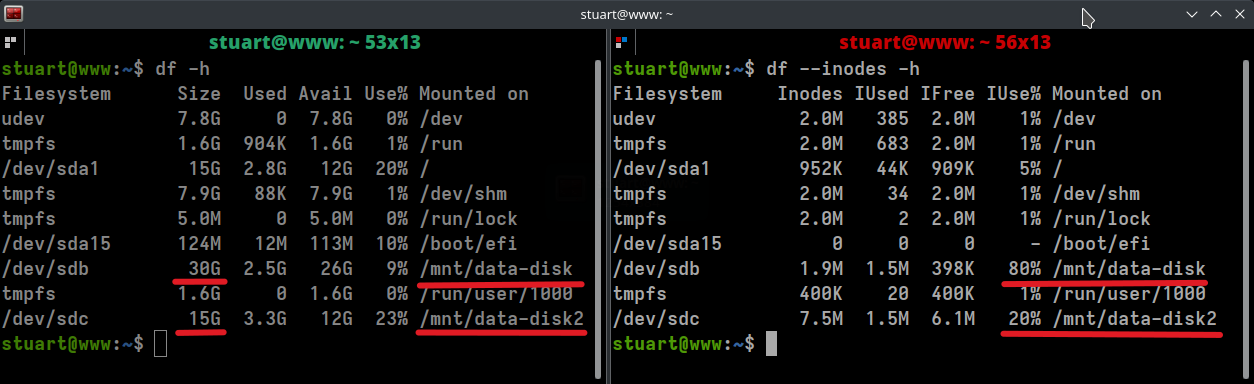
Below is a screenshot of the output from df with (right) and without (left) the --inodes flag after I had copied all of the docker data
from my "data-disk" to the "data-disk2" replacement that is running XFS instead of EXT4.
You can see that I only gave the replacement disk half the amount of actual storage, with 15 GB instead of 30 GB.
However, it's inode utilization is only at 20%, compared to the larger EXT4 system's 80%.
Somehow, this made the disk utilization go up from 2.5G to 3.3G, but this is definitely a tradeoff that was worth making.
XFS Filesystem Options Dtype / Ftype
Docker requires d_type flag to be set to true,
which causes directory entries to
store the file type. This is on by default in newer operating systems, including Debian 12.
This flag appears to have subsequently changed to being set/shown with
f_type for the flag. You can check by running:
sudo xfs_info /path/to/filesystem/mount | grep -i ftype
... then you should see something like so:
naming =version 2 bsize=4096 ascii-ci=0, ftype=1
Docker Info Check
It's also a good idea to run:
docker info
... and check "Supports d_type:" is set to true like so:

First published: 18th July 2025
